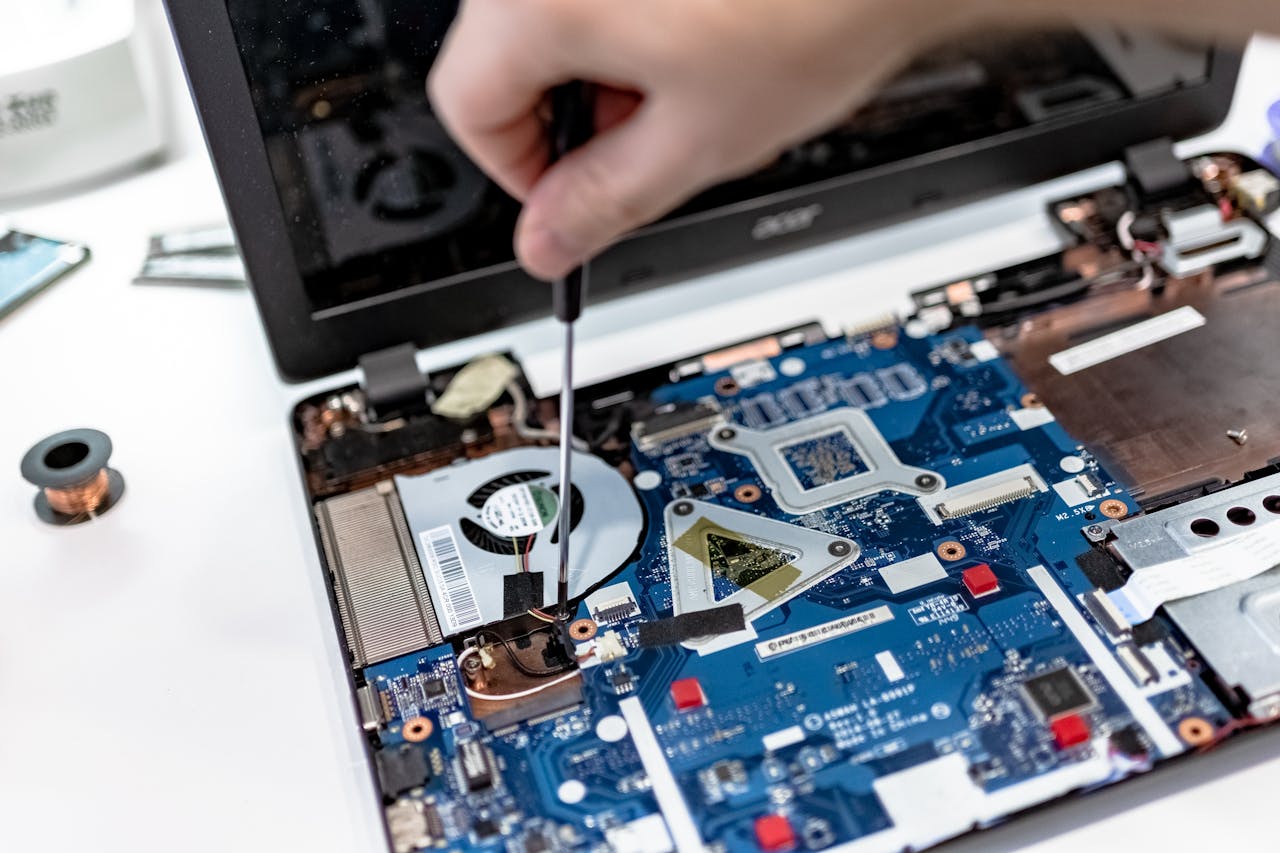
If your computer is taking too long to start, it can make every working day feel slower before you have even opened an email or browser. A slow startup does not always mean the computer is finished. In many cases, Windows is being held back by too many startup programs, limited storage, ageing hardware, software problems or background tasks that load every time you switch the machine on.
The important thing is finding the real cause. Restarting repeatedly or installing random “speed-up” software can hide the problem rather than solve it. If your computer taking too long to start has become a regular issue, a few sensible checks can usually show whether the problem is simple, software-related or likely to need professional diagnosis.
Why does a computer take so long to start?
A Windows computer has several jobs to complete before it is ready to use. It has to check hardware, load Windows, start drivers, connect background services, open security software and launch any programs configured to run automatically. If one part of that process is slow, the whole startup can drag.
When a computer taking too long to start is also slow after you log in, the cause may be broader than startup alone. Low free storage, a failing drive, heavy antivirus activity, damaged Windows files or insufficient memory can affect both boot time and normal performance. That is why good computer troubleshooting looks at the full pattern rather than only timing the startup screen.
If the machine is used for work and you cannot afford repeated delays, Computer repair Coalville can help identify whether the problem comes from Windows, hardware or software before unnecessary parts are replaced.
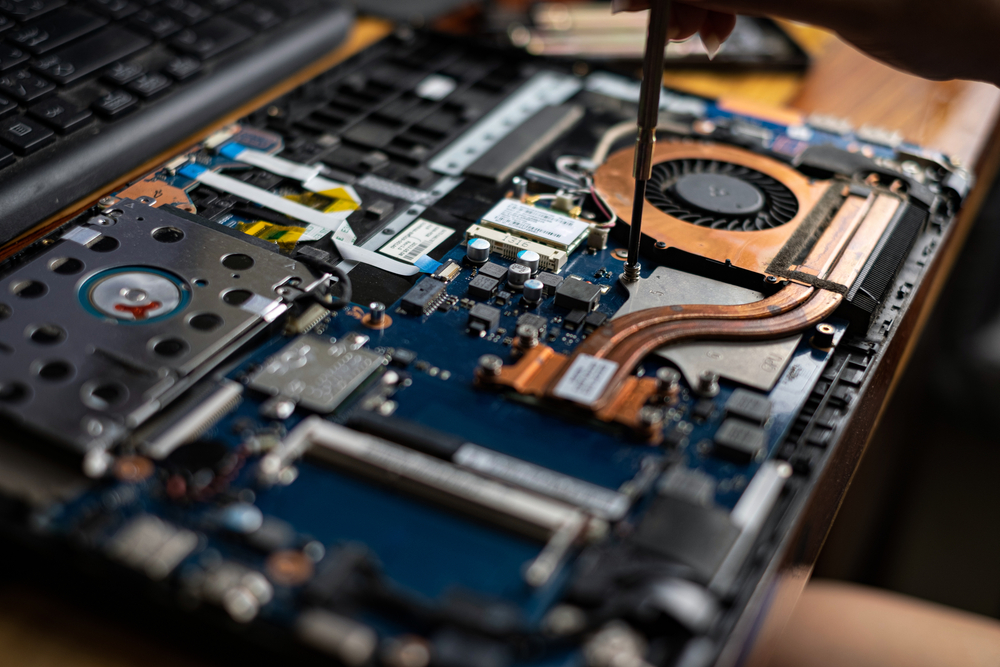
Too many startup programs can slow Windows down
One of the most common reasons for a computer taking too long to start is the number of programs launching automatically. Cloud storage apps, messaging tools, printer utilities, game launchers, update tools and security software can all try to open at the same time. Each one uses processor time, memory and disk activity before the computer has settled.
You can check startup apps in Windows and disable programs you do not need immediately. The aim is not to switch everything off. Security software, hardware drivers and essential business tools may need to stay enabled. Remove only items you recognise and understand. If you are unsure, leave them alone until they have been checked properly.
A computer taking too long to start because of startup overload will often become noticeably faster once unnecessary programs are removed from the launch sequence. If there is little improvement, that suggests another issue may be involved.
Low storage space can make startup painfully slow
Windows needs free space to work properly. It uses storage for temporary files, updates, virtual memory and background processes. When the main drive is nearly full, Windows has less room to manage those tasks efficiently. The result can be a slow startup, sluggish applications and long delays when opening files.
If your computer taking too long to start is also warning that storage is low, check how much free space remains on the Windows drive. Large downloads, old video files, duplicate photographs, temporary files and unused software can consume far more space than people realise. If you are unsure where the space has gone, this guide to a computer running out of storage explains what may be taking it up.
Deleting known, unwanted files can help, but do not remove Windows folders or files you do not recognise. For a machine containing important work or family data, a safer option is to have it checked before deleting large amounts of information. A PC repair Coalville service can also check whether the drive is simply full or showing signs of a deeper fault.
Windows updates and software problems can delay startup
Windows updates can temporarily make startup slower, especially when the system is finishing an installation after a restart. That is usually short-lived. But if the problem continues for days or the machine repeatedly gets stuck on loading screens, Windows may be struggling with a failed update, damaged system files, a troublesome driver or another software problem.
A computer taking too long to start after a recent update should first be allowed to complete a full restart. Avoid repeatedly switching the power off while Windows is updating because that can make matters worse. If the computer reaches the desktop, check whether updates are still pending and whether Windows reports any errors.
Persistent Windows problems can need more careful diagnosis. Reinstalling Windows is not always the first or best answer, particularly if the computer contains files that have not been backed up. If the machine is also unstable, this guide explains some common reasons why a computer keeps crashing. Computer repairs in Coalville can check update failures, driver issues and Windows corruption while keeping data protection in mind.

Malware and unwanted software can affect startup speed
Viruses are not the only unwanted software that can slow a computer down. Browser add-ons, adware, bundled utilities and unwanted background programs can all consume resources as Windows starts. Some also add their own startup entries, scheduled tasks or browser processes without making it obvious to the user.
If your computer taking too long to start has suddenly become much slower, pop-ups have appeared, the browser homepage has changed or unfamiliar programs are opening, malware or unwanted software should be considered. A proper virus removal check should look beyond one quick scan. It should also review suspicious programs, browser extensions and startup behaviour.
Do not install several antivirus products at once. Running multiple real-time security tools can create conflicts and make a slow computer even slower. If the machine holds business accounts, personal documents or saved passwords, Local computer repair in Coalville can help check the system without relying on random cleaning tools.

An ageing hard drive can make every startup slower
Older computers often use a mechanical hard disk drive. These drives are much slower than modern solid-state drives, especially when Windows is loading many small files during startup. A machine may still work, but take several minutes to become usable after the desktop first appears.
A computer taking too long to start on an older hard drive may benefit greatly from an SSD upgrade. But the drive should be checked before copying data. If a hard drive is failing, cloning it without assessing its condition can put extra strain on the device and risk making data recovery more difficult.
Warning signs include clicking noises, frequent freezing, files taking a long time to open, Windows errors and unusually high disk activity. If you hear strange noises, stop unnecessary use and arrange a check. Different sounds can point to different faults, so this guide explains what it can mean when a computer is making strange noises. Laptop repair Coalville can include drive health checks, upgrades and advice on whether the existing computer is still worth improving.
Not enough memory can make the computer slow after login
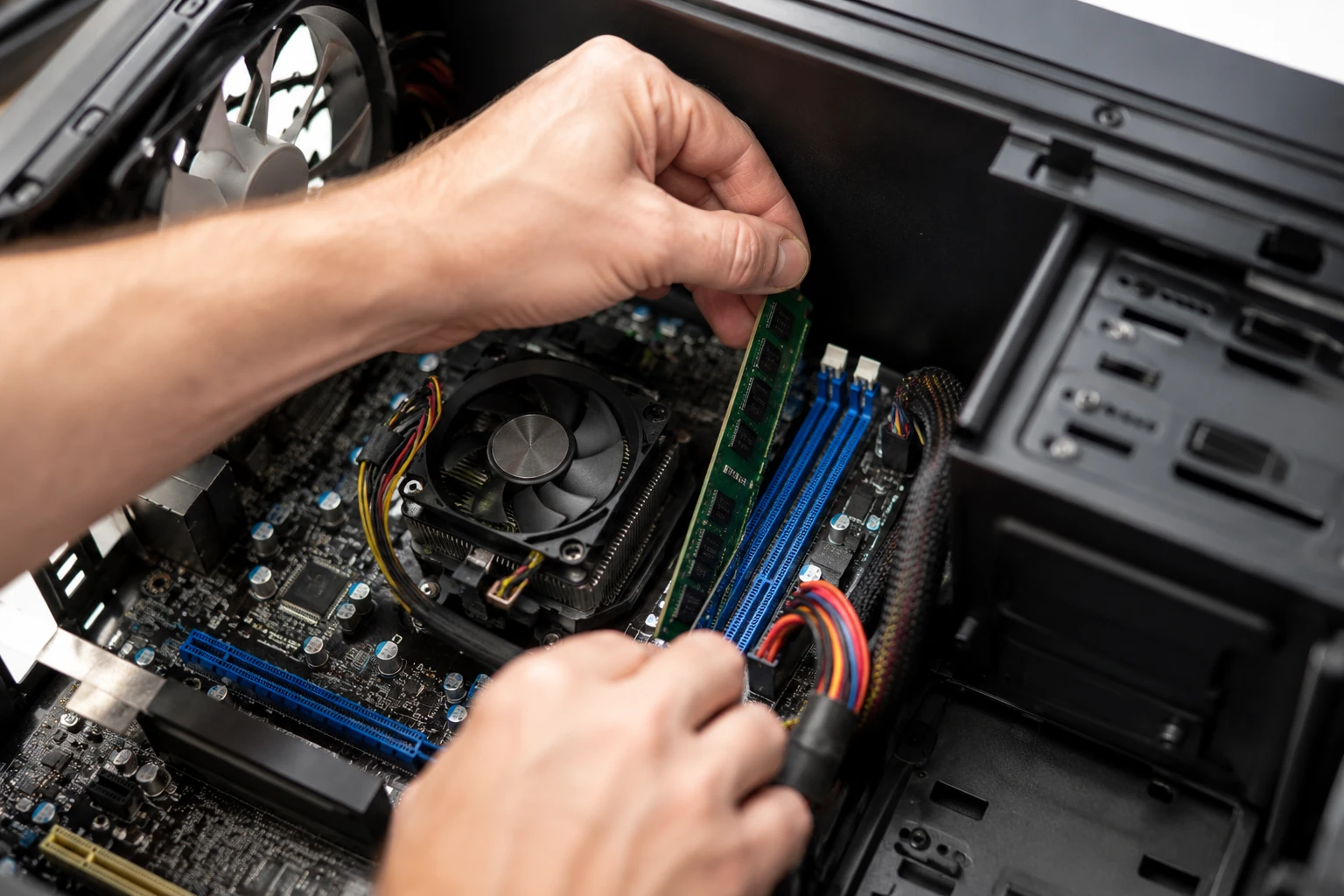
RAM is the short-term working memory a computer uses while programs are running. If there is too little, Windows has to rely more heavily on the storage drive. That can make the machine feel slow, especially after login when antivirus software, browsers, cloud tools and other applications all begin loading together.
A computer taking too long to start may therefore have a memory problem rather than a startup-program problem. This is common on older laptops with modest RAM, particularly if the user now runs more demanding software than when the computer was new.
Adding memory can help some machines, but not every laptop can be upgraded. The correct type and maximum supported capacity also matter. Before paying for parts, it is worth checking whether RAM, storage, processor performance or Windows itself is actually causing the slowdown.
What can you safely check yourself?
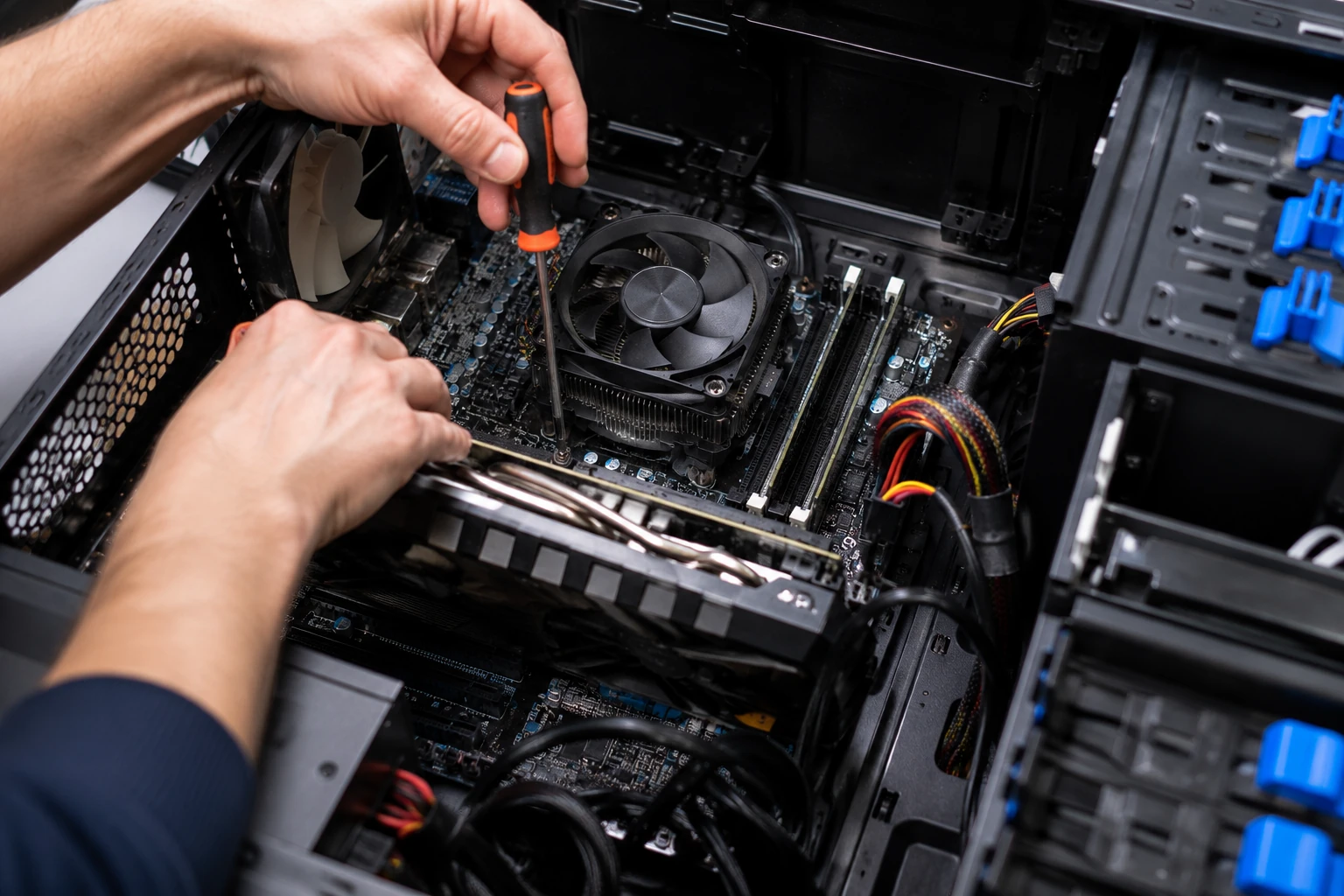
If the computer still starts reliably, there are several sensible checks you can make before booking a repair. First, restart it rather than only closing the lid or putting it to sleep. Then check free storage space, review startup apps, allow Windows updates to finish and remove programs you know you no longer use. You can check startup apps in Windows and disable programs you do not need immediately. Microsoft also provides guidance on configuring startup applications in Windows. The aim is not to switch everything off. Security software, hardware drivers and essential business tools may need to stay enabled. Remove only items you recognise and understand. If you are unsure, leave them alone until they have been checked properly.
Watch what happens during startup. If your computer taking too long to start spends most of its time before the Windows login screen, the cause may differ from a machine that logs in quickly but then takes five minutes to become usable. That detail can be useful during computer diagnostics.
Also pay attention to freezing, clicking noises, blue screens, repeated update errors or missing files. Device problems can provide another clue, and if your computer won’t recognise a USB device, it is worth checking whether the issue is limited to that device or part of a wider Windows or hardware problem. Those symptoms suggest the problem should not be treated as simple maintenance. For a machine that contains important data, Computer repair Coalville can check the underlying cause before more invasive fixes are attempted.
When should a slow startup be professionally diagnosed?
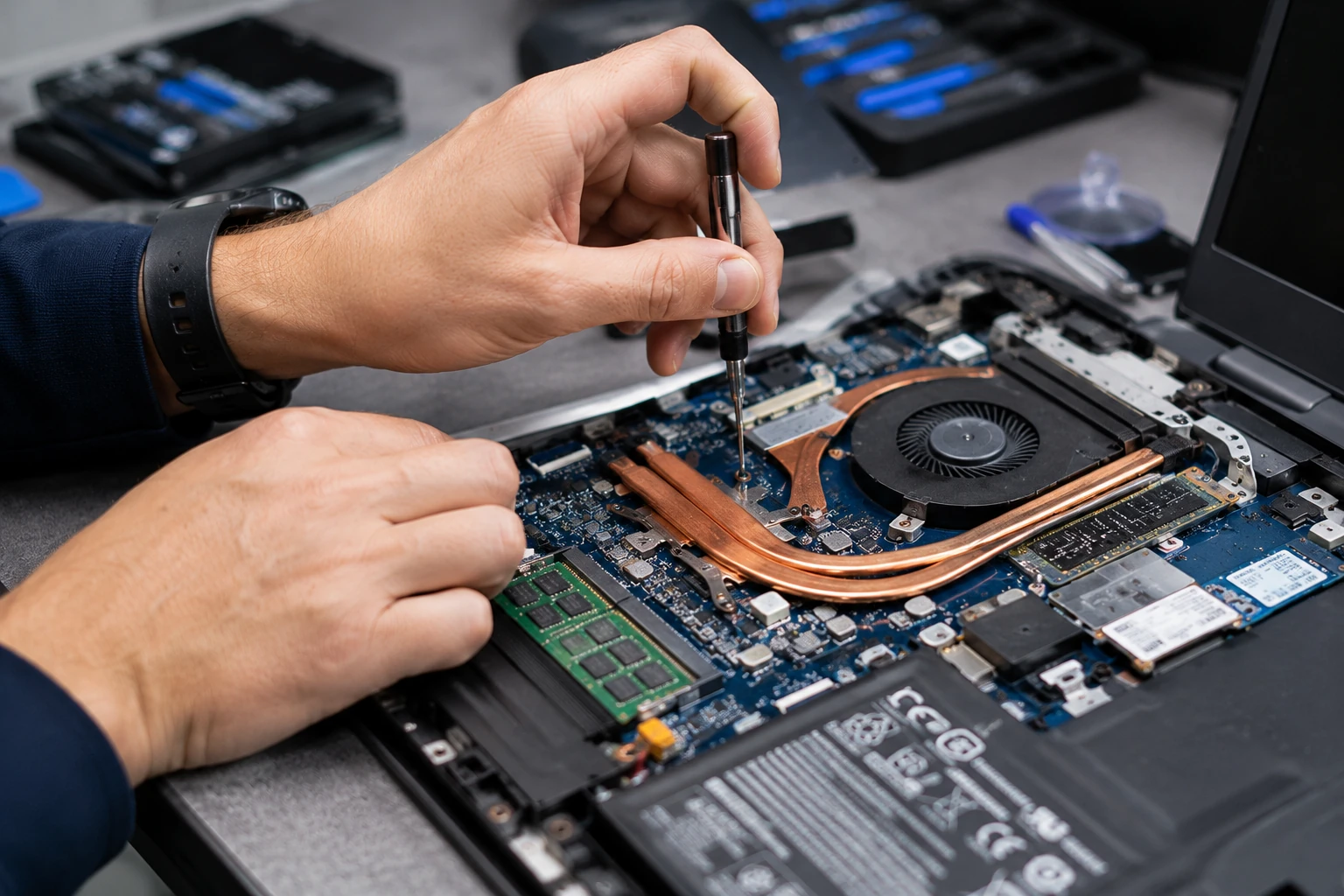
A computer taking too long to start needs professional attention when the delay keeps getting worse, Windows regularly freezes, the machine sometimes fails to boot, the drive makes unusual noises or important files are at risk. These symptoms can point to failing hardware, damaged Windows files or a storage problem rather than ordinary clutter.
It is also worth arranging diagnosis when you have already disabled unnecessary startup items and freed storage space but the computer remains slow. Continuing to guess can waste time and lead to unnecessary upgrades. A proper check should identify where the delay occurs and whether the repair is economical.
For homes and small businesses, Computer repair service in Coalville can cover slow computers, Windows repair, laptop troubleshooting, PC maintenance, virus removal, hardware upgrades and data recovery where needed.

Should you repair, upgrade or replace the computer?
Not every slow computer needs replacing. If the machine is otherwise reliable, an SSD upgrade, extra memory, Windows repair or removal of unnecessary software can make a large difference. This can be particularly worthwhile when the computer still meets your everyday needs and the repair cost is reasonable.
However, a computer taking too long to start may be one symptom of a machine that is reaching the end of its useful life. An old processor, limited upgrade options, failing battery, damaged hinges or repeated hardware faults can make replacement more sensible than spending money on one repair after another.
The decision should be based on the condition of the whole machine, not just its age. A good PC repair assessment should explain what is wrong, what can realistically be improved and what the likely cost is before work begins.
Frequently asked questions
Why is my computer taking too long to start?
A computer taking too long to start is often caused by too many startup programs, low storage space, Windows problems, malware or an ageing hard drive. Check whether the delay happens before login or after the desktop appears. If startup keeps getting slower, computer diagnostics can identify whether software, storage or hardware is responsible.
Can a slow computer be repaired?
Yes. Many slow computers can be improved without replacing them. PC repair may involve removing unnecessary startup software, fixing Windows problems, clearing storage, checking for malware, upgrading RAM or fitting an SSD. The right repair depends on the cause. A diagnosis is useful when the computer is slow all day, not just during startup.
Will adding an SSD make my computer start faster?
Often, yes. Replacing an older mechanical hard drive with an SSD can make Windows start much faster and improve everyday computer performance. Before an upgrade, the existing drive should be checked for faults, especially if it is making strange noises or freezing. Important files should also be backed up before any storage work begins.
Could a virus make my computer slow to start?
Yes. Malware, adware and unwanted software can load during startup and use processor, memory and storage resources. A proper virus removal check should look at suspicious programs, browser extensions and startup entries, not only run one quick scan. If the computer contains important business or personal data, avoid random cleaning tools and seek proper help.
Is it worth repairing an old laptop that starts slowly?
It can be. Laptop repair is often worthwhile if the machine is otherwise reliable and needs a sensible upgrade such as an SSD or extra RAM. Replacement may be better when there are several faults, poor battery life or limited upgrade options. The repair cost should be compared with the condition and expected remaining life.
When should I worry about losing my files?
Take extra care if a slow computer also freezes, makes clicking noises, shows drive errors or sometimes fails to start. Those signs can point to storage failure. Minimise unnecessary use and make a backup if the drive is still accessible. If important files are missing, professional data recovery may be safer than repeated repair attempts.

Useful Guides
Slow Computer? 7 Common Reasons Your PC Is Running Slowly
Computer Not Connecting to Internet? Common Causes
Computer Keeps Freezing? Why It Happens and What to Do