When your computer won’t turn on, it can immediately feel like something serious has failed. You press the power button and nothing happens, the lights come on but the screen stays black, or the machine starts and then stops before Windows loads.
Those symptoms can look similar, but they do not always have the same cause. A computer that shows absolutely no sign of power is different from one that powers up but cannot start Windows. The problem could be something as simple as a loose cable, or it could involve the charger, battery, power supply, storage drive or another internal component.
The important thing is not to start changing parts at random. A few simple observations can narrow the fault down considerably.
This guide explains what may be happening when your computer won’t turn on, which checks are sensible to make yourself, and when professional computer troubleshooting may be the safer option.
Why won’t my computer turn on?
If your computer won’t turn on, first look closely at what actually happens when you press the power button. A completely dead machine with no lights, fans or sounds usually points towards a power problem. If lights appear or fans begin spinning, power is reaching at least part of the computer and the fault may be elsewhere.
A PC can also appear completely dead when the real issue is the display. The computer may be running normally while the monitor, laptop screen, display cable or graphics hardware is preventing you from seeing anything.
If the computer reaches a manufacturer’s logo but Windows never appears, that is another type of startup fault. Windows files, storage problems, updates or damaged startup information may prevent the operating system from loading.
Pay attention to lights, fan noise, beeps, screen messages and exactly how far the computer gets. These clues are often more useful than repeatedly pressing the power button.
If the fault is not obvious, Computer repair Coalville diagnostics can help determine whether you have a power, hardware, display or Windows problem.
Common reasons a computer won’t turn on
There are several reasons why a computer won’t turn on, and the symptoms often give the first indication of where the problem lies.
Dell Support also separates startup faults into no power, no startup test, no boot and no display problems.
No power reaching the computer
Start with the obvious. A loose plug, switched-off socket, damaged extension lead or poorly connected power cable can make a perfectly healthy computer appear completely dead. Desktop computers should also have the switch on the rear of the power supply checked if one is fitted.
For a laptop, check that the charger is connected firmly at both ends. Look for damage to the cable, plug or charging connector. Some chargers have an indicator light that can help show whether power is reaching the adapter.
A faulty laptop charger or battery
If a laptop won’t start, the charger or battery may be responsible rather than the laptop itself. Batteries deteriorate with age and can eventually stop accepting a charge. Chargers can also fail internally even when the cable looks undamaged.
A machine that works from the charger but immediately switches off when it is removed may have a failed battery. If there is no response even while connected to power, further laptop troubleshooting may be needed.
A desktop power supply problem
A desktop PC relies on its internal power supply to provide the correct power to the motherboard, storage drives, graphics card and other components. A failing power supply can cause a completely dead computer, unexpected shutdowns or a machine that briefly starts and immediately turns off again.
Power supplies contain potentially dangerous voltages, so they should not be opened or dismantled at home. If you suspect one has failed, PC repair Coalville testing can confirm the problem before a replacement is fitted.
A screen or display problem
Sometimes the computer won’t turn on only in appearance. If you can hear fans, see indicator lights or hear Windows sounds, the computer itself may be working while the screen remains blank.
On a desktop, check that the monitor is switched on and that its power and display cables are secure. If there is another suitable monitor or cable available, trying it can help separate a computer fault from a display fault.
Internal hardware failure
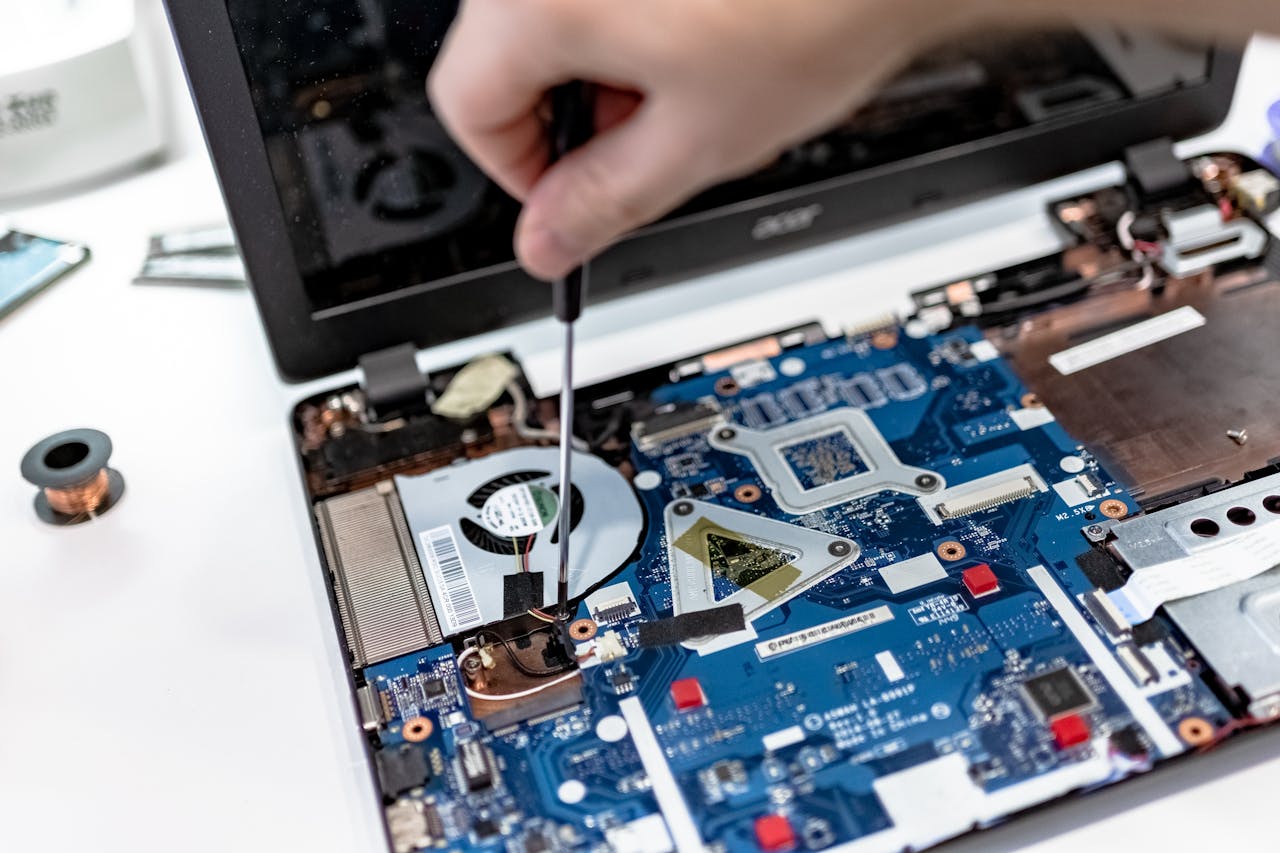
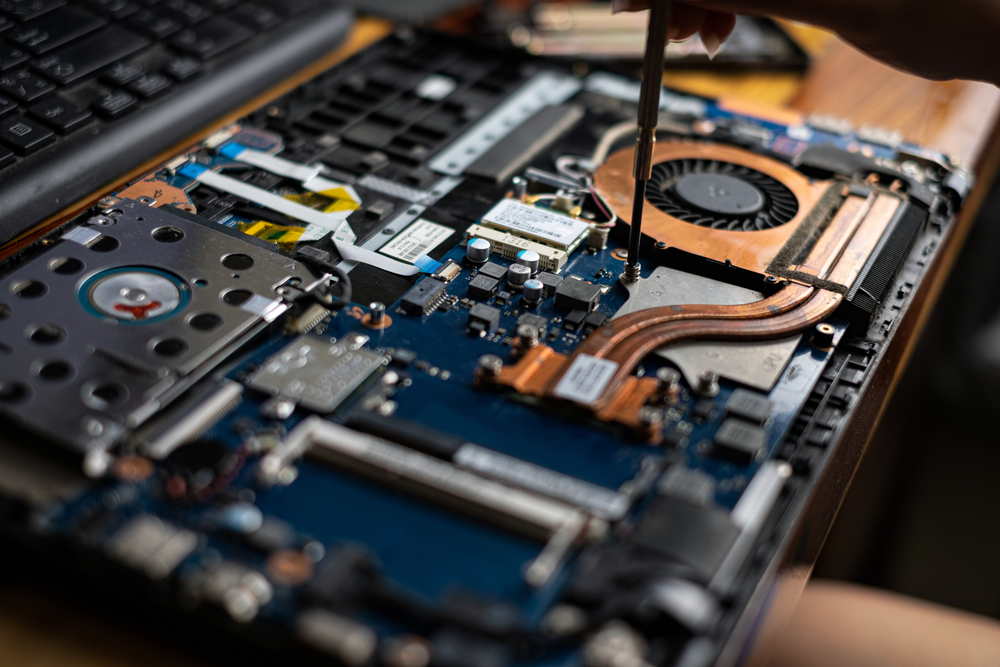
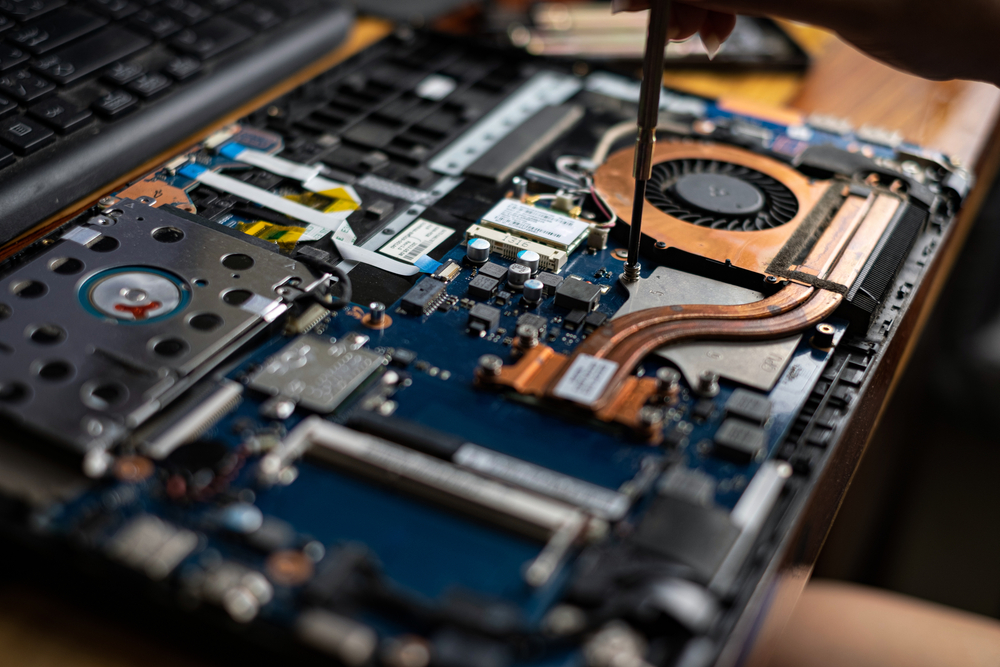
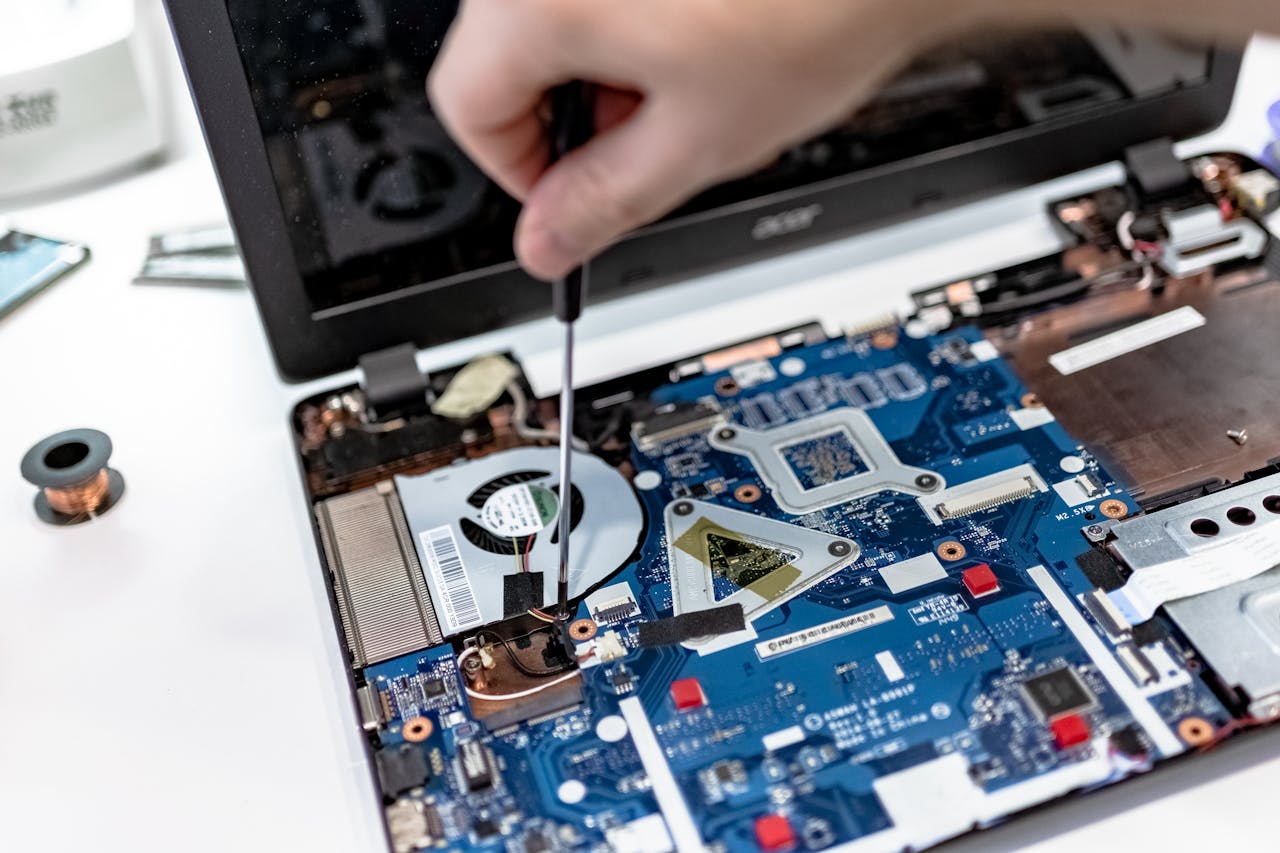
Memory faults, motherboard problems, damaged charging circuits and other internal failures can all prevent a computer from starting correctly. Beep patterns or flashing diagnostic lights can sometimes indicate that the computer has detected a hardware fault before Windows even begins loading.
What should you check first if your computer won’t turn on?
When a computer won’t turn on, there are several safe checks you can make before assuming something expensive has failed.
Check the power socket
Test the wall socket with another device that you know works. If the computer is connected through an extension lead or surge protector, temporarily bypass it and connect the computer directly to the wall socket.
Reconnect the power cable or charger
Disconnect the cable and reconnect it firmly. On a laptop, inspect the charger cable and charging port for obvious damage. Do not continue using a charger with exposed wires, damaged insulation or a badly damaged connector.
Disconnect unnecessary devices
Remove USB drives, printers, external hard drives and other unnecessary accessories. A faulty peripheral or USB device can occasionally interfere with startup.
Then try starting the computer again with only the essential equipment connected.
Look for signs of power
Watch the power light and listen carefully. Does a fan start? Does the keyboard light briefly? Can you hear the storage drive? Are there any beeps or flashing lights?
If the computer won’t turn on but you can see or hear activity, make a note of it. That information can help distinguish a power problem from a display or startup fault.
Do not repeatedly force the computer to start
If the machine starts and immediately shuts down, makes unusual electrical noises, smells burnt or becomes unusually hot, disconnect it from the mains. Continuing to power-cycle faulty hardware can sometimes make the problem worse.
If these basic checks do not reveal the cause, Laptop repair Coalville can check the charger, battery, charging circuit and internal components safely.
When a computer that won’t turn on points to hardware failure
If your computer won’t turn on after the power source and cables have been checked, internal hardware becomes more likely.
On a desktop computer, the power supply is one possible cause. A failing unit may provide no power at all, or enough power for the fans to twitch before the machine immediately shuts down. Testing with suitable equipment can establish whether the correct voltages are reaching the computer.
The motherboard can also fail. Power surges, liquid damage, overheating, ageing components and electrical faults can all affect the circuitry responsible for starting the machine.
Laptops have similar issues, although the components are more tightly integrated. A damaged charging socket, failed battery, charging circuit fault or motherboard problem can all produce the same basic symptom: you press the button and nothing useful happens.
Memory problems can create a slightly different pattern. The computer may power up but never display an image or complete its normal startup checks. Some machines signal this with flashing lights or beep codes.
Professional computer diagnostics are useful because several hardware faults can look almost identical from the outside. Computer repairs in Coalville can test the relevant components before money is spent replacing parts unnecessarily.

Can Windows cause a computer not to start?
Yes, although Windows cannot normally explain a machine that has absolutely no power. If your computer won’t turn on far enough to show any lights or fan activity, the problem is more likely to involve power or hardware.
But if the computer switches on and then fails before reaching the Windows desktop, software becomes much more relevant.
Windows system files can become damaged. An interrupted update, failing storage drive, damaged driver or corrupted startup information may prevent the operating system from loading correctly.
You may see messages such as Automatic Repair, Preparing Automatic Repair, No Boot Device or other startup errors. The machine may also restart repeatedly or stop at a black screen.
Windows includes repair and recovery tools that can solve some startup problems without replacing hardware. However, if a storage drive is failing, repeated repair attempts can put important files at greater risk.
If the computer contains files that are not backed up, protecting the data should come before repeated Windows repair attempts. A Local computer repair in Coalville service can check the drive and consider data recovery before major changes are made.

Could a virus stop a computer from starting?
Malware can interfere with Windows, damage files, change startup settings and make a computer unstable. However, if your computer won’t turn on and shows absolutely no sign of electrical power, a virus is unlikely to be the direct cause.
Malware becomes more relevant when the PC powers up but Windows will not load properly, repeatedly crashes, displays unusual messages or had already been behaving strangely before it stopped starting.
Warning signs can include browser redirects, unwanted pop-ups, unfamiliar programs, security software being disabled or a sudden drop in computer performance.
Virus removal may be part of the repair, but it should not become the automatic explanation for every startup problem. Power faults, damaged Windows files and failing storage can produce similar symptoms.
A proper diagnosis should establish whether malware is actually present before files or applications are removed.
Can important files be recovered if the computer won’t turn on?
Often, yes. A computer that will not start does not automatically mean your documents, photographs or business files have been lost.
If the fault is the charger, battery, power supply, motherboard or Windows installation, the storage drive itself may still be completely readable. In those situations, files can often be copied once the drive is accessed correctly.
Data recovery becomes more difficult when the storage device itself is failing. Clicking noises from a mechanical hard drive, disappearing files, extremely slow access or repeated Windows disk errors can all indicate a storage problem.
If important information is involved, avoid repeatedly trying random repairs. Reinstalling Windows or resetting a computer can overwrite data that might otherwise have been recoverable.
A Computer repair Coalville assessment can check the condition of the storage drive before deciding whether normal file recovery or more specialist data recovery is needed.
Is it worth repairing a computer that won’t turn on?
In many cases, yes. When a computer won’t turn on, the problem may be one faulty part rather than the whole machine being beyond repair.
A failed desktop power supply, laptop charger or battery can often be replaced without replacing the computer. Windows startup problems may also be repairable while leaving your programs and files intact.
The age and overall condition of the machine still matter. If an older laptop needs a motherboard, battery, screen and storage replacement, spending heavily on it may not make sense. A relatively modern machine with one clear fault can be a very different decision.
Upgrades can sometimes be considered at the same time as a repair. For example, if an older mechanical hard drive is failing, replacing it with an SSD can repair the fault and make the computer considerably faster.
The best decision comes after the fault has been diagnosed. Knowing the likely repair cost lets you compare that cost with the age, specification and replacement value of the computer.
When should you get professional computer repair help?
If your computer won’t turn on after you have checked the socket, cable, charger and external devices, professional diagnosis is sensible.
You should also stop troubleshooting and get help if you smell burning, see physical damage, hear unusual electrical noises or suspect liquid has entered the machine.
Professional PC repair is particularly useful when the computer powers on but gives no display, repeatedly switches itself off, shows diagnostic lights or beeps, or cannot get beyond the Windows startup process.
Important files are another reason not to experiment too far. Data recovery is often easier when the original storage device has not been repeatedly reset, reformatted or subjected to unnecessary repair attempts.
Good computer troubleshooting should tell you what has failed, whether the part can reasonably be repaired or replaced, and whether repairing the machine still makes financial sense.
Frequently asked questions about a computer that won’t turn on
Why won’t my computer turn on at all?
If there are no lights, fan noise or other signs of power, first check the wall socket, power lead and any extension cable. Desktop PCs may have a failed power supply, while laptops can have charger, battery or charging-port faults. If those checks do not help, PC repair diagnostics may be needed to test the internal power system.
Why won’t my laptop turn on even when it is plugged in?
A plugged-in laptop can still fail to start if the charger is faulty, the charging port is damaged or an internal battery or motherboard fault is preventing power from reaching the system. Laptop repair testing can confirm whether the adapter is producing the correct output and whether the laptop itself is accepting and distributing that power correctly.
Why does my computer turn on but show a black screen?
If lights and fans operate but the screen stays black, the computer may have a display, memory or graphics problem rather than a complete power failure. Check the monitor and display cable on a desktop first. If nothing appears, PC repair diagnostics may be needed to test memory, graphics hardware and the computer’s normal startup checks.
Can Windows problems stop my computer starting?
Yes. Damaged Windows files, a failed update, corrupted startup information or a failing storage drive can prevent Windows loading even though the computer has power. Windows repair tools can sometimes correct the problem. If important files are stored on the machine, check the drive first because data recovery may take priority over reinstalling the operating system.
Can a virus stop my PC from turning on?
A virus is unlikely to cause a completely dead PC with no lights or fans, but malware can damage Windows files or interfere with normal startup. If the machine powers on but Windows fails to load, virus removal may form part of the repair. Hardware, storage and Windows problems should also be checked rather than assuming malware is responsible.
Can files be recovered from a computer that won’t start?
Often they can. If the power supply, battery, screen, motherboard or Windows installation has failed, the storage drive may still contain your files normally. Data recovery becomes harder if the drive itself is damaged. Avoid resetting or reinstalling Windows when important files are not backed up, as this can reduce the chance of successful recovery.
Is it worth repairing an old computer that won’t turn on?
It depends on the fault, age and specification. A charger, battery or desktop power supply replacement may make good financial sense. An older machine needing several expensive components may not. A computer repair assessment can also identify useful upgrades, such as an SSD or additional memory, that could extend the machine’s useful life after repair.
How do I know whether I need laptop repair or PC repair?
If basic checks have failed, professional help is sensible when there is no power, no display, repeated shutdowns or Windows will not start. Laptop repair often involves charger, battery and charging-circuit testing, while desktop PC repair may include power-supply and component checks. Both should include diagnosis before replacement parts are recommended.
Need help because your computer won’t turn on?
If your computer won’t turn on, you do not need to guess which component has failed. Forest IT Services can check the power system, charger, battery, display, storage, Windows installation and other hardware to identify where the startup process is failing.
Whether the answer is a straightforward power repair, Windows repair, component replacement, upgrade or data recovery, diagnosing the fault first gives you a clearer idea of what the computer needs and whether repairing it makes sense.
For help with a PC or laptop that will not start, visit our Computer repair Coalville page.
Useful computer guides
Slow Computer? 7 Common Reasons Your PC Is Running Slowly