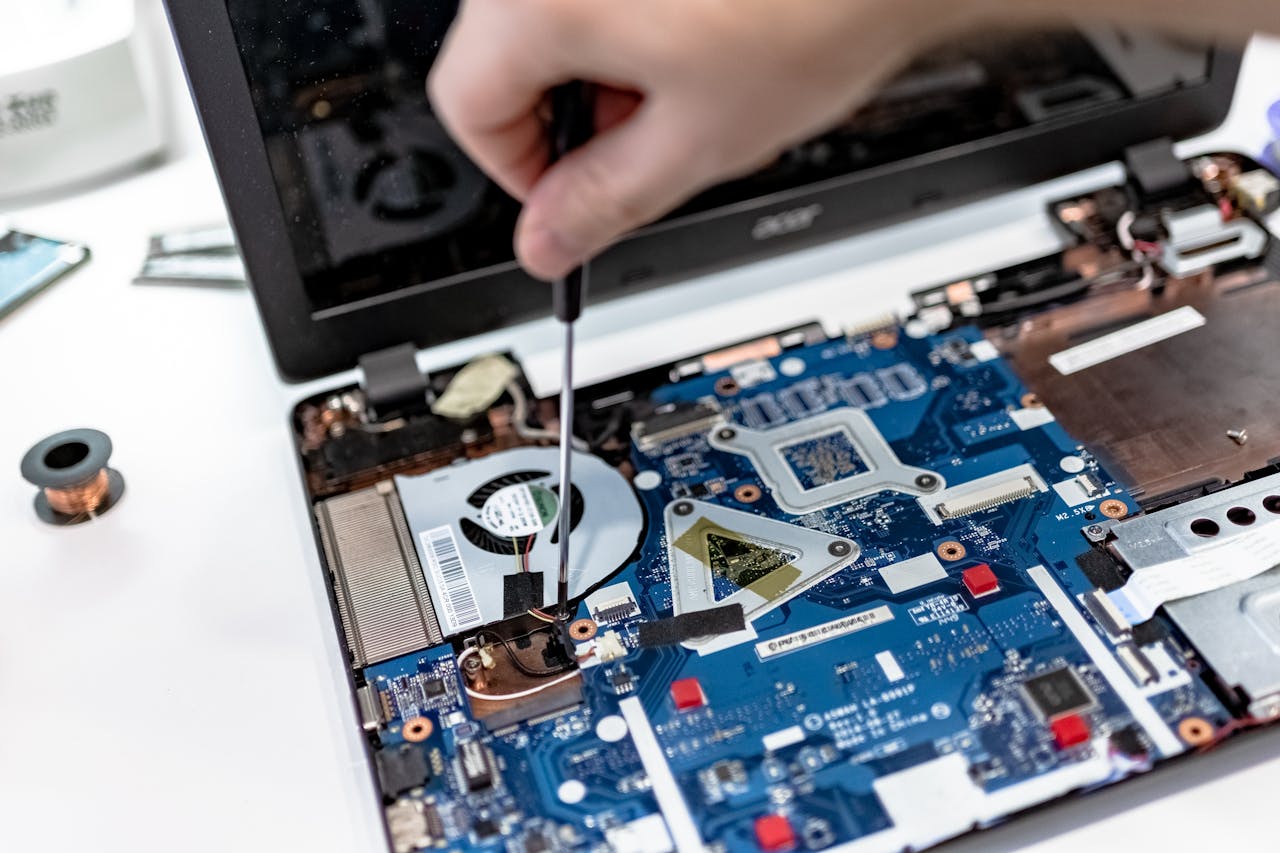
When your computer keeps freezing, even simple jobs can become frustrating. One moment everything is working normally, then the mouse stops moving, programs stop responding or the whole screen appears locked.
A one-off freeze is not always a serious problem. But if it happens regularly, there is usually an underlying cause that needs attention. It could be Windows, a faulty program, low storage, overheating, failing hardware or unwanted software. Dell Support also identifies issues such as outdated drivers, malware and blocked air vents as possible causes of a computer locking up or becoming unresponsive.
The useful part is that the pattern often gives clues. A computer that freezes only when one program is open may have a software problem. A PC that locks up at random, even when doing very little, may need deeper computer diagnostics.
This guide explains why a computer keeps freezing, what you can safely check yourself, and when a professional repair is the better option.
Why does a computer keep freezing?
If your computer keeps freezing, it means Windows or another part of the system has stopped responding properly. Sometimes the problem affects one program. In other cases, the whole computer becomes unresponsive and only starts working again after a restart.
When a computer keeps freezing repeatedly, the cause is not always obvious because several different faults can create the same symptom. A slow computer may appear to freeze while it struggles with too many background tasks. A failing drive can make Windows pause while it tries to read files. Overheating can also cause instability when the processor is under load.
Start by noticing when the problem happens. Does the computer freeze soon after startup? Does it happen when browsing the internet, opening files, joining a video call or using a particular application? Does the fan become unusually loud first? These details can make computer troubleshooting much faster.
If the freezing is becoming frequent, a Computer repair Coalville technician can test the hardware and software rather than relying on guesswork.
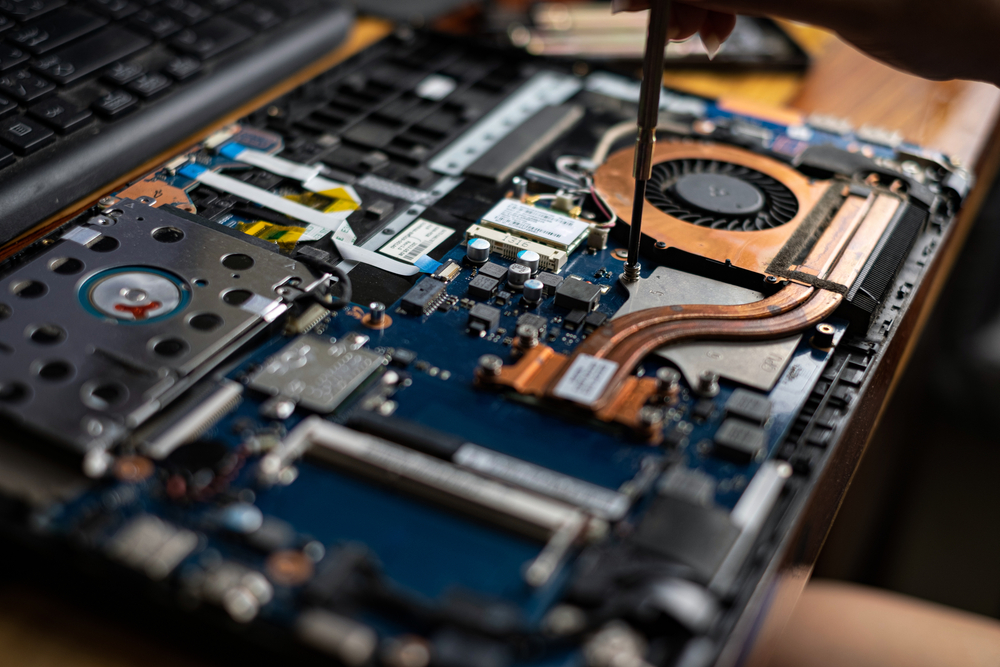
Common reasons a computer keeps freezing
There are several common reasons a computer keeps freezing. Some are easy to correct. Others can become worse if they are ignored.
Too many programs running at once
If your computer keeps freezing when several applications are open, memory pressure may be part of the problem. Every open program uses memory and processing power. If a computer has limited RAM, running several applications, browser tabs, cloud services and background programs together can leave very little capacity for Windows. The machine may slow down first and then appear to freeze.
Low storage space
Windows needs free drive space for temporary files, updates and normal system tasks. When the main drive is almost full, performance can become erratic. Removing unused files can help, but very low storage may also be a sign that the computer needs a larger drive or an upgrade.
Software or Windows problems
A damaged update, faulty driver or badly behaving application can cause repeated lock-ups. If the computer keeps freezing after a recent Windows update, new software installation or hardware change, the timing matters.
Overheating
Dust, blocked vents or a failing fan can allow heat to build up inside a PC or laptop. The computer may slow down, crash or freeze when it gets too hot. This is especially common when the problem appears during gaming, video calls, editing or other demanding work.
Failing hardware
Faulty RAM, a failing hard drive or SSD, power problems and motherboard faults can all cause freezing. These problems are harder to confirm without proper testing, which is where Laptop repair Coalville or PC diagnostics may be needed.
What should you check first when your computer keeps freezing?
If your computer keeps freezing but still works between incidents, there are a few sensible checks you can make before booking a repair.
Restart the computer properly
A proper restart clears temporary processes and reloads Windows. This sounds basic, but it can resolve a temporary software problem. If you normally leave the computer in sleep mode for days or weeks, restarting is worth trying first.
Check how much storage is free
Open Windows Settings and check the storage on the main drive. If it is almost full, remove files and programs you no longer need. Avoid deleting folders you do not recognise, especially inside Windows or Program Files.
Notice whether one program causes the problem
If the computer only freezes while using one application, that program may be damaged, outdated or incompatible. Updating or reinstalling it can sometimes fix the problem. If several unrelated programs freeze, the fault may be elsewhere.
Check for Windows updates
Missing updates can leave known faults unresolved, while a recently installed update can occasionally introduce a problem. Check Windows Update and make a note of when the freezing started.
Listen and look for physical warning signs
Unusual clicking, repeated fan surges, excessive heat or a computer that freezes after being moved can point towards hardware trouble. In that situation, continuing to restart the machine repeatedly may not be the best approach. PC repair Coalville can help identify whether the problem is the drive, memory, cooling system or another component.
When freezing points to a hardware problem
When a computer keeps freezing at random, hardware needs to be considered. Software faults often follow a pattern. Hardware faults can be much less predictable.
If your computer keeps freezing without a clear software pattern, storage should be checked. A failing storage drive can cause long pauses when Windows tries to open files or load programs. An older hard drive may also become noticeably noisy. SSDs are quieter, so the warning signs can be sudden freezes, missing files, startup problems or Windows repair messages.
Faulty RAM can also cause freezing, crashes and unexpected restarts. The symptoms may come and go, which makes the problem difficult to diagnose without memory testing.
Heat is another common cause. A laptop can look perfectly clean from the outside while dust has built up around the fan and internal cooling system. If the machine becomes very hot or the fan runs constantly before a freeze, the cooling system should be checked.
Power faults can create similar symptoms. A failing laptop charger, battery, desktop power supply or motherboard component may cause instability without completely stopping the machine from starting.
For repeated or unexplained faults, Computer repairs in Coalville can include component testing before parts are replaced unnecessarily.

Can Windows or software make a computer freeze?
Yes. A computer keeps freezing for software reasons surprisingly often. The operating system, drivers, startup programs and installed applications all interact with each other. If one part becomes damaged or incompatible, Windows can become unstable.
A common example is a faulty driver. Drivers allow Windows to communicate with hardware such as graphics cards, printers, WiFi adapters and other devices. A damaged or incorrect driver can cause freezing when that device is used.
Corrupted Windows files can also lead to slow startup, programs not opening, error messages and lock-ups. In some cases Windows repair tools can fix the problem. In others, the operating system may need a more thorough repair or reinstall.
Startup programs are worth checking as well. Some computers load a large number of utilities as soon as Windows starts. This can make an otherwise usable PC feel extremely slow and can contribute to freezing, especially on older machines with limited memory.
If a computer keeps freezing after software changes, a Local computer repair in Coalville service can check Windows, drivers and startup processes before assuming the hardware has failed.

Can viruses or malware cause repeated freezing?
Malware can make a computer slow, unstable or unresponsive. Some unwanted programs run in the background, use large amounts of memory or processor capacity, interfere with browsers and change Windows settings.
If your computer keeps freezing, malware is one possibility, but freezing alone does not prove that the computer has a virus. But if the problem appears alongside pop-ups, browser redirects, unfamiliar programs, security warnings or a sudden drop in performance, a proper malware check is sensible.
Be careful with random “PC cleaner” or “speed-up” programs found through adverts. Some create more problems than they solve. Use recognised security software and avoid installing multiple antivirus products at the same time, because they can conflict with each other.
Professional virus removal should not just delete obvious threats. It should also check startup items, browser extensions, Windows settings and any signs that files have been damaged. If important data is involved, backups and data recovery options should be considered before major repair work begins.
Is it worth repairing a computer that keeps freezing?
In many cases, yes. A computer keeps freezing because of one repairable issue rather than because the whole machine has reached the end of its life.
An older computer with a mechanical hard drive may feel dramatically better after an SSD upgrade. A machine with too little memory may benefit from additional RAM. A cooling problem may simply need cleaning, a new fan or fresh thermal material. Windows problems can often be repaired without replacing the computer.
The age of the machine still matters. If several components are failing, the battery is poor, the screen is damaged and the computer cannot comfortably run current software, replacement may offer better value.
The right decision comes from diagnosing the fault first. Spending money on upgrades before checking the cause can waste money. Equally, replacing a computer because it freezes occasionally can be unnecessary if the fault is straightforward.
A Computer repair Coalville assessment can help you compare the likely repair cost with the value and condition of the machine.
When should you get professional help?
If your computer keeps freezing once every few months and works normally after a restart, you may only need to keep an eye on it. But frequent freezes should not be ignored, especially if the problem is getting worse.
When a computer keeps freezing despite basic checks, professional diagnosis is sensible. It is especially important if the computer freezes during startup, locks up several times a day, becomes extremely hot, makes unusual noises, crashes with Windows errors or contains important files that are not backed up.
It is also worth getting help if you have already tried the basic checks and the fault keeps returning. Repeatedly reinstalling software, downloading repair utilities or changing settings at random can make the original problem harder to identify.
Good computer troubleshooting should establish whether the issue is software, storage, memory, cooling, power or another component. That allows the repair to focus on the actual cause rather than replacing parts by trial and error.
Frequently asked questions about a computer that keeps freezing
Why does my laptop keep freezing even when I am not doing much?
A laptop can freeze while apparently idle because Windows still runs updates, security scans, cloud syncing and background programs. Low memory, a nearly full drive, overheating or failing storage can also cause it. If the laptop keeps freezing regularly, laptop repair diagnostics can check memory, drive health, Windows problems and cooling before parts are replaced.
Can a slow computer be repaired?
Yes. Slow computers are often improved by removing unnecessary startup software, fixing Windows problems, checking for malware, increasing memory or replacing an old hard drive with an SSD. A proper PC repair assessment should first identify what is actually limiting performance. Upgrading the wrong component can cost money without making the computer noticeably faster.
Can WiFi problems make a computer appear to freeze?
WiFi issues do not usually freeze the whole computer, but they can make browsers, cloud software and online applications appear stuck while they wait for a connection. Check whether the mouse and other programs still respond. If the entire PC becomes unresponsive as well, the fault is more likely to involve Windows, drivers, hardware or computer performance.
Could a virus be causing my computer to freeze?
Yes, although freezing by itself does not confirm an infection. Malware can use processor power, memory and storage in the background, making a PC slow or unstable. Virus removal may be needed if freezing appears with pop-ups, redirects, unfamiliar software or security warnings. Important files should be backed up before major repair work where possible.
Can files be recovered if a freezing computer stops working?
Often, yes, but it depends on why the computer failed. If Windows will not start but the drive is healthy, data recovery may be straightforward. If the drive itself is failing, continued use can make recovery harder. If important files are stored on a freezing computer, stop unnecessary restarts and get the storage checked promptly.
Need help because your computer keeps freezing?
If your computer keeps freezing, the quickest route to a reliable fix is finding the cause rather than trying random changes. Forest IT Services can check Windows, storage, memory, cooling, malware and other common faults to work out what is making the machine unstable.
Whether you need a software repair, hardware replacement, upgrade, virus removal or help recovering important files, a proper diagnosis gives you a clearer answer on what is worth doing next.
For help with a freezing PC or laptop, visit our PC and laptop repair in Coalville page.
Useful Computer Guides
Slow Computer? 7 Common Reasons Your PC Is Running Slowly